
SMPP Center actually ships three different spreadsheet integrations: an Excel add-in, a Google Sheets connector, and an Airtable connector. People tend to lump them together, but they’re not interchangeable. One’s a manual desktop tool built for reseller-branded one-off campaigns; the other two run in the background and fire on their own when a new record shows up. Here’s how to tell which one you actually need.
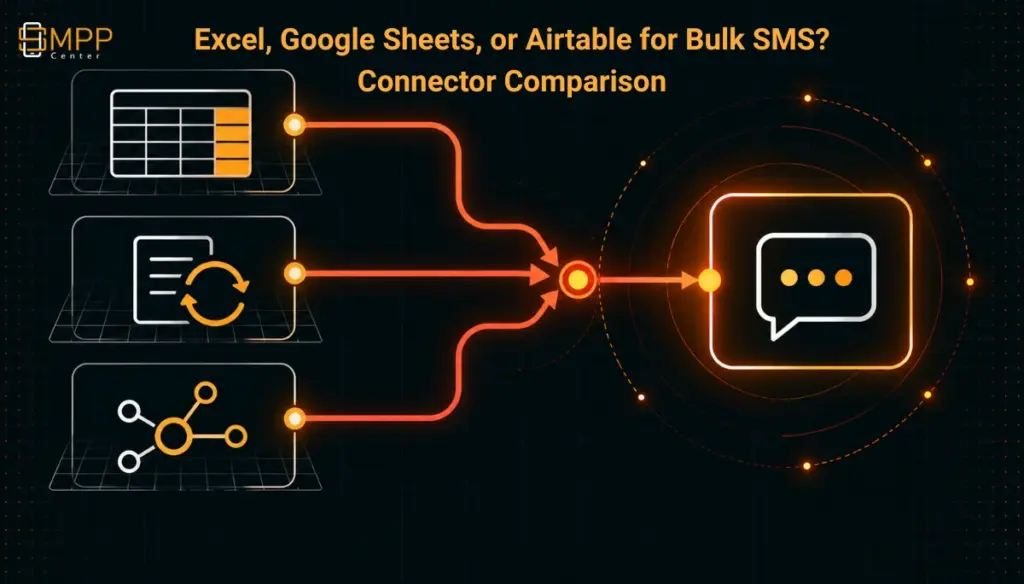
Table of Contents
- The Short Answer
- TL;DR
- Three Different Architectures
- The Excel Plugin
- The Google Sheets Connector
- The Airtable Connector
- Why the Polling Cycle Is the Real Bottleneck
- Phone Number Formatting Problems
- Choosing Between the Three
- Next Steps
- FAQs
The Short Answer
These three aren’t variations on the same feature, even though SMPPCenter’s own menu lists them side by side. The Excel plugin is a Windows desktop add-in: someone opens it, clicks a button, and a campaign goes out right then. It’s built for resellers who want clients working inside a spreadsheet they already know, under the reseller’s own brand. Google Sheets and Airtable are a different animal entirely. Connect either one and it just runs in the background, checking for new rows or records roughly once a minute and firing messages on its own. Nobody has to be at the keyboard.
So the question to ask isn’t “which is better,” it’s “who’s supposed to pull the trigger.” If a person should decide when a campaign goes out, use Excel. If a new row or record should just turn into a message without anyone clicking send, use one of the cloud connectors, and pick between Google Sheets and Airtable based on where your data already lives: a flat contact list fits Sheets, a structured setup with linked tables and views fits Airtable better.
TL;DR
- The Excel plugin is a manual, on-demand tool. There is no polling, no scheduling, and no background automation; a user opens the ribbon and clicks Send SMS or Group SMS.
- The Excel plugin is Windows-only (Windows 10/11, Excel 2013+ or Microsoft 365, 64-bit, .NET Framework 4.8) and is built around reseller white-labeling: a reseller points it at their own branded API endpoint before handing it to clients.
- Google Sheets and Airtable connectors both poll roughly once a minute and fire on newly created rows or records, not on edits to existing ones.
- Both cloud connectors cover SMS, WhatsApp, Voice, and RCS, with per-channel toggles and OAuth-based setup (Airtable adds PKCE).
- The platform’s own default throughput ceiling, not Google’s or Airtable’s API rate limits, is what actually paces a large batch once the connector picks it up.
- Spreadsheet-native phone number formatting, numbers stored as digits instead of text, scientific notation, missing country codes, breaks automations before any connector logic runs; fixing the column format is a prerequisite, not a feature of any of the three tools.
- Pricing for all three connectors is quote-based and not published; budget for that conversation before committing to one.
Three Different Architectures
Calling all three “spreadsheet integrations” makes sense for a product menu, but it hides the thing that actually matters when you’re choosing one: whether a human triggers the send, or the data does.
The Excel SMS Plugin is a native ribbon add-in you install on a Windows machine. It adds five buttons: Send SMS for a single message, Group SMS for a bulk campaign pulled from a column of numbers and messages, Sent Report, Check Balance, and a Settings panel. Nothing here runs on its own. Someone opens the workbook, picks the data, clicks a button. That’s intentional rather than a gap in the product, because the plugin is really built for resellers to hand to their downstream clients. A reseller points it at their own branded endpoint before handing it out, so the client sees the reseller’s own service, working in a tool they’re probably already comfortable with.
Google Sheets and Airtable go the other way. Once you connect either one, it just runs unattended, watching a specific sheet, tab, base, or table for newly created rows or records and sending a message the moment one shows up. No one has to click anything. It’s the same basic pattern SMPPCenter already uses for its CRM connectors (Salesforce, HubSpot, Zoho) and its Magento 2 connector: authorize the account once through OAuth, a background job polls on a fixed interval, and a new record is treated as the signal to act.
There’s technically a fourth path too, outside the plugin lineup: SMPPCenter’s own bulk upload endpoint takes a plain text file of phone numbers straight through its messaging API, with a short PHP/cURL example for posting the file alongside your DLT template and entity IDs. That’s really for a developer who’s fine writing and maintaining a script. The three connectors in this comparison exist for everyone else, whether the campaign is occasional (Excel) or the trigger needs to run without a human in the loop at all (Sheets, Airtable).
The Excel Plugin
This one earns its place in a pretty specific situation: a reseller’s clients already manage their contact lists in spreadsheets and shouldn’t need a web login, an API key, or a separate app just to fire off a campaign.
Setup is a one-time install that needs admin rights, on a Windows 10 or 11 machine running Excel 2013 or later (or Microsoft 365), 64-bit only, with .NET Framework 4.8 already on the machine. Credentials get encrypted with Windows DPAPI under whoever installed it, and the add-in talks to the API over HTTPS with TLS 1.2 or better. There’s no Mac version, no browser version. It’s a Windows desktop tool, full stop.
Day to day it’s simple: type numbers and messages into columns, select the range, hit Group SMS. Sent Report and Check Balance sit in the same ribbon, so nobody has to leave the spreadsheet to confirm a campaign went out or check remaining credit. And because the reseller controls which endpoint every installed copy points to, the white-labeling isn’t just a logo swap, the client’s copy is genuinely talking to the reseller’s own branded service, with the reseller managing the underlying SMPPCenter account relationship behind the scenes.
The catch is the obvious one: nothing happens unless a person opens Excel and clicks something. No polling, no schedule, no reacting to a row that showed up from some other system. If what you actually need is “a lead form adds a row and a welcome SMS goes out two minutes later with nobody touching Excel,” this plugin just isn’t built for that. That’s what the two cloud connectors below are for.
The Google Sheets Connector
This one’s for data that’s already sitting in Sheets and just needs to turn into messages on its own, no one opening the spreadsheet required.
You connect your Google account once through OAuth, then pick a spreadsheet and tab and confirm row 1 has headers. Those headers become template variables, so {Name} or {Company} can drop straight into a message, and you separately tell it which column holds the phone number. Add an optional status column and it’ll update itself, SENT or FAILED first, then DELIVERED or UNDELIVERED as confirmations roll in. After that it just runs: new row shows up, message goes out, usually within a minute or two.
One sheet can cover four channels at once: SMS (DLT sender ID, templates, inbound replies logged back), WhatsApp (pre-approved templates, inbound logged too), Voice (pre-recorded clips, outbound only), and RCS (verified bot and templates, inbound logged). You can toggle these independently per sheet, so the same row could trigger both an SMS and a WhatsApp message without needing two separate setups.
It’s worth knowing what this is being built against: the product’s own pitch is that you’d otherwise be writing this in Google Apps Script, which throws “unsafe app” warnings and needs ongoing maintenance, or paying for Zapier to bridge the gap, which adds cost and another moving part. Resellers who want their own brand on the OAuth consent screen, rather than SMPPCenter’s, can run it through their own Google Cloud project instead of a shared one.
Google-side access stays narrow: it reads your account email just to show who’s connected, reads and writes only the sheet and tab you picked, and only looks at Drive file names to populate the picker. It doesn’t touch the rest of your Drive. And whatever channel you’re using still needs its own prerequisites sorted first, an approved DLT sender ID for SMS, approved WhatsApp templates, uploaded clips for Voice, a verified RCS bot, since the connector runs through the same approval pipeline as the rest of the platform rather than a side door.
The Airtable Connector
Airtable’s connector solves the same basic problem as Sheets, a new record triggers a message, but it’s aimed at teams whose data lives in Airtable’s bases and tables instead of a flat spreadsheet, and it adds something Sheets doesn’t offer: running several automations independently on one account.
Authentication goes through OAuth with PKCE. A reseller sets up an Airtable OAuth client (ID and secret) under white-label settings, and end users then just consent through the SMPPCenter panel itself, no need to register their own app with Airtable. From there it’s three steps: pick a base and table and map the mobile field (and optionally a status field), turn on whichever channels you need, each configured separately, and let it run, with a Recent Activity panel showing what’s been processed. Polling sits on roughly the same once-a-minute cycle as Sheets, with a similar one-to-two-minute lag from new record to sent message.
The real difference from Sheets is Multiple Table Connections: one account can run several separate automations against different bases and tables at the same time, each with its own channel mix, rather than being tied to a single connected sheet. Status tracking is more detailed too, SENT, DELIVERED, FAILED, ANSWERED, PENDING, UNDELIVERED, and inbound replies can land in a new table or an existing one, whichever you prefer.
One thing stands out as the strongest built-in safeguard across all three tools: a table with no usable mobile number field, no phone-type or properly formatted text field mapped, just can’t trigger outbound messaging at all until that’s fixed. Neither the Excel plugin nor the Sheets connector describes anything that strict for the equivalent case.
Reseller controls follow the same ownership pattern as the OAuth client itself: white-label settings decide which channel automations downline customers can turn on, and billing, compliance assets (DLT sender IDs, approved templates, verified bot status), and the messaging ledger all stay on the same account rather than splitting off into a separate system, which is really the pitch against wiring something similar together with Zapier, Make, or your own webhook host.
Why the Polling Cycle Is the Real Bottleneck
If a campaign is slow going out through either cloud connector, the easy guess is that Google or Airtable’s API limits are throttling it. They’re probably not.
Google’s Sheets API allows 300 read and 300 write requests per minute per project, and 60 of each per minute per user, according to Google’s own quota documentation. Airtable allows five requests per second per base, and up to fifty per second per access token across a user or service account, per Airtable’s own rate limit docs. A connector checking one sheet or base once a minute barely touches either of those ceilings. That’s just not where the slowdown comes from.
What actually paces things is two other factors. First, the polling interval itself, both connectors check roughly once a minute, so a row added right after a check runs can sit for nearly sixty seconds before anyone notices it. That’s just how both tools work; neither product page mentions a way to tighten it. Second, and this is the one that bites on bigger campaigns, the messaging account’s own throughput cap still applies no matter which connector is submitting. A standard SMPP client account defaults to 10 messages per second, and anything beyond that gets rejected with error code 0x00000058 (ESME_RTHROTTLED) until the rate drops back down. So dropping five thousand rows into a sheet in one go doesn’t mean five thousand messages go out in the next poll. The connector will see all of them fine, but actual sending still crawls along at whatever TPS the account is provisioned for, which works out to roughly eight minutes just to submit a batch that size, before carriers even get involved. This isn’t unique to spreadsheets either; a CRM or e-commerce automation hitting the same account runs into the exact same wall, because it’s a limit on the account, not on any one connector.
The practical move is to plan around the account’s actual TPS, not what Google’s or Airtable’s rate limits look like on paper, and to ask for a higher TPS tier ahead of a known big send rather than finding the ceiling the hard way mid-campaign.
Phone Number Formatting Problems
Before any of the three connectors even gets involved, the spreadsheet software itself can quietly wreck your data, and this has nothing to do with SMPPCenter.
The classic mistake is entering a phone number as a number instead of text. Excel and Sheets will both happily strip a leading zero or a plus sign off anything formatted as numeric, since neither one “counts” in a number’s value, and a long enough digit string gets converted to scientific notation without asking (a fourteen-digit number turning into 1.23457E+13) the moment the column’s set to General or Number instead of Text. Once that happens to the underlying cell, it’s gone, you can’t just reformat the display and get the digits back. The other common mess is inconsistent country codes in the same column, some rows with a +, some with 00, some with neither. That one’s just sloppy data entry rather than a platform quirk, but it breaks automated sends just as badly.
The fix doesn’t change depending on which connector you’re using: format the phone number column as text before you type anything in, and pick one international format and stick to it, usually E.164, a plus sign, country code, then the number with no spaces or punctuation. None of the three tools advertises phone-number validation as a feature. The closest thing to an exception is Airtable’s mobile-field requirement, a table with no usable phone or text field mapped simply won’t trigger outbound messages at all, which at least forces the question upfront instead of letting a broken column fail quietly, message by message.
Choosing Between the Three
| Factor | Excel Plugin | Google Sheets Connector | Airtable Connector |
|---|---|---|---|
| Trigger | Manual click | New row, auto-polled | New record, auto-polled |
| Platform | Windows desktop only | Cloud, browser-based source | Cloud, browser-based source |
| Typical turnaround | Immediate on click | 1-2 minutes after row created | 1-2 minutes after record created |
| Channels | SMS only | SMS, WhatsApp, Voice, RCS | SMS, WhatsApp, Voice, RCS |
| Authentication | API endpoint + encrypted local credentials | Google OAuth | Airtable OAuth with PKCE |
| Multi-workflow support | One workbook at a time, manual | One connected sheet/tab per setup | Multiple independent table connections |
| Built-in white-labeling | Yes, reseller-branded endpoint | Yes, reseller’s own Google Cloud project | Yes, reseller’s own OAuth client |
| Best fit | Occasional campaigns, reseller clients already in Excel | Ongoing automation from a flat contact list | Ongoing automation from structured, multi-table workflows |
A short checklist for picking between them:
- Does a person need to review and approve the list before every send, or should it go out the moment data appears? Approval-first points to the Excel plugin; automatic points to one of the two cloud connectors.
- Is the team on Windows machines already, or working from a browser-based tool? The Excel plugin requires Windows; the cloud connectors do not care about the client operating system.
- Does the data already live in a flat list of contacts, or in a structured base with multiple related tables and views? Flat lists suit the Sheets connector; multi-table structures suit Airtable.
- Will more than one independent workflow need to run against the same account (different campaigns, different customer segments, different trigger conditions)? Airtable’s Multiple Table Connections handles that natively; Sheets is built around one connected sheet per setup.
- Does the number list already arrive as a file dropped on a schedule from another system, rather than being edited by a person? That scenario fits a file-drop workflow more than a spreadsheet connector; it overlaps with SMPPCenter’s SFTP-based bulk messaging option, and a dedicated operations runbook for that path exists separately (confirm its live URL before linking it here, see the verification table above).
- Does the team already run a CRM or e-commerce connector against the same account? The Sheets and Airtable connectors use the same OAuth-plus-polling pattern as SMPPCenter’s CRM and Magento connectors, so the operational behavior (polling delay, TPS ceiling, status write-back) will already be familiar (see the verification table above for the specific articles once their publication status is confirmed).
None of the three connectors publishes pricing on its own page. All three point to a quote conversation rather than a published rate card, consistent with how SMPPCenter prices its other integration add-ons.
Next Steps
Matching the tool to the workflow matters a lot more here than counting features. A reseller handing clients a manual Excel tool and a marketing team that needs a fully automatic trigger are solving two completely different problems that just happen to share the word “spreadsheet.” Once you’re clear on who’s pulling the trigger and where the data lives, the rest comes down to what you’ve already got running. Current plan and pricing details cover the base platform; the connector pricing itself comes from a direct conversation, and the why SMPPCenter page covers what stays constant underneath all three, routing, compliance, support, no matter which connector you end up on.
FAQs
Will the Google Sheets or Airtable connector react to an edited row, not just a new one?
Not based on what either product describes, both are built around newly created rows or records specifically. If you need an edit to trigger something, don’t assume it works until SMPPCenter confirms it directly.
Can the Excel plugin run on a schedule instead of needing a manual click?
No, there’s no scheduling here. It’s click-to-send through the ribbon, that’s the whole model.
Do the Sheets and Airtable connectors cost extra on top of a regular SMPPCenter plan?
Neither publishes pricing. Both need a quote conversation, same as SMPPCenter’s other integration add-ons.
Does the Excel plugin work on Mac?
No. Windows 10 or 11 only, 64-bit Excel 2013 or later (or Microsoft 365), and .NET Framework 4.8.
Can a reseller put their own branding on the OAuth consent screen for all three?
Yes, though how you do it differs for each: the Excel plugin points at a reseller-branded endpoint, Sheets can run through the reseller’s own Google Cloud project, and Airtable through the reseller’s own OAuth client.
What happens if thousands of rows get added to a spreadsheet at once?
Both cloud connectors will catch all of them on the next poll, but actual sending still crawls along at the account’s provisioned rate, 10 messages a second by default, so a big batch takes longer to clear than the one-to-two-minute polling lag alone would suggest.
Checkout our other posts
WooCommerce, Shopify, and Magento 2 SMS Plugins: How Each One Actually Triggers a Message
Salesforce, HubSpot, and Zoho SMS Connectors: What They Automate (and What You Still Configure)
Payment Gateway Integration for SMS Platforms: What Auto Wallet Credit Actually Automates
SFTP Bulk SMS Campaigns: An Operations Runbook for File-Drop Messaging at Scale
Telegram Bulk Messaging for Business: What the Platform Actually Allows