Most SMS platforms solve “my OTP got stuck behind someone’s bulk campaign” by keeping transactional and promotional traffic on separate services. SMPPCenter solves it differently, with a per-account priority queue an operator can tune. Here’s how it actually works.
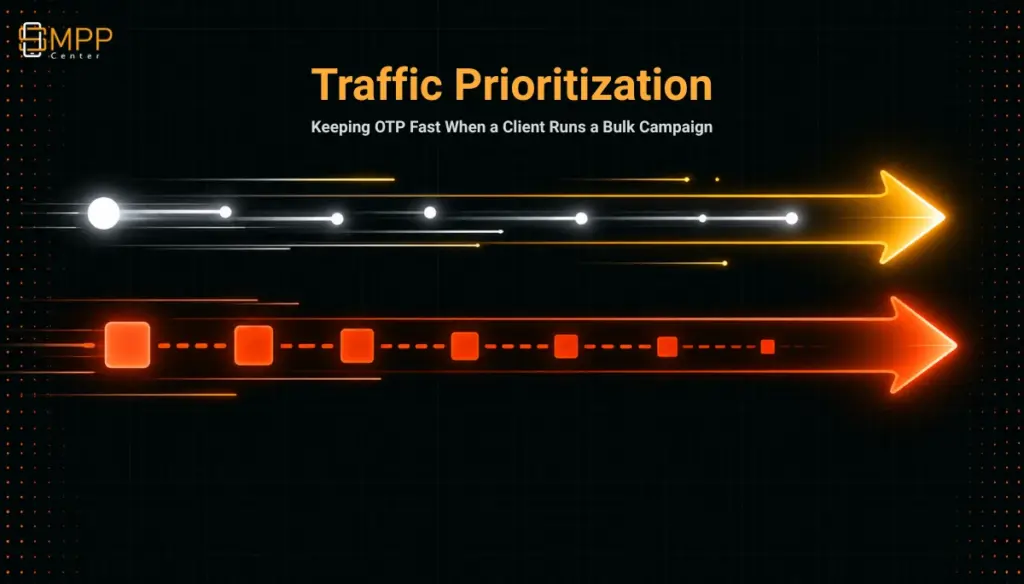
Table of Contents
- The Short Answer
- TL;DR
- How the Fast Lane and Slow Lane Actually Work
- The Urgency Scale and the Detection Rules
- Why This Is an Operator Control, Not a Customer Dashboard
- Two Different Ways to Solve the Same Problem
- Where This Fits Next to TPS Limits and Throttling
- What’s Confirmed and What Isn’t
- Next Steps
- FAQs
The Short Answer
SMPPCenter can run two queues per customer account: a fast lane for urgent, single-message traffic like OTPs and light API calls, and a slow lane for large batches like file uploads and campaign sends. Both run at the same time, and urgent traffic is still served ahead of large batches even while a big send is in progress. It’s off by default and has to be turned on per account by an admin with the right permission, with five quick presets (platform default, OTP-optimized, normal marketing, large campaigns, or fully custom) plus three tunable thresholds that decide when traffic gets treated as a “batch” in the first place. This is a configuration an operator or reseller sets up for a downline customer, not something the customer toggles themselves.
TL;DR
The problem this solves is a real and common one: a customer uploads a 500,000-row campaign file, and now their own OTPs (or anyone else sharing infrastructure with them) sit in the same queue behind that batch. SMPPCenter’s answer is a configurable two-lane priority system per account, with urgency labeled on a scale from OTP-1 (fastest) through NORMAL-15 down to BULK-30 (slowest), plus three detection thresholds (how many numbers count as a batch, how many messages per second count as a burst, and how long traffic stays on the slow lane after a burst ends). It’s an admin-side control, gated by role permission, not a self-service toggle in a customer’s own dashboard. Twilio, by comparison, solves the same problem differently: instead of a priority queue, it tells customers to put OTP and bulk traffic on entirely separate Messaging Services with separate sender pools and separate validity windows. Both approaches work. They’re just architecturally different answers to the same operational headache, and it’s worth understanding which one you’re actually buying before you assume “OTP will always be fast” means the same thing on every platform.
How the Fast Lane and Slow Lane Actually Work
Here’s the mechanic in plain terms. Every customer account can have two queues running concurrently: a fast lane meant for single, urgent sends, and a slow lane meant for anything that looks like a batch. The platform doesn’t wait for the slow lane to clear before serving the fast lane; urgent traffic keeps moving even while a large send is actively processing. That’s the whole point of splitting the lanes in the first place, rather than just running everything through one FIFO queue and hoping nothing big gets uploaded at a bad time.
It’s off by default. Until an admin turns it on for a specific customer, that account just uses whatever general routing the platform applies, and no custom rules exist for it. Flip it on and configure it, and the account gets its own fast-lane and slow-lane priority settings. Turn it back off, and those custom rules disappear; the account reverts to standard platform routing. That’s a meaningful detail for anyone managing a lot of accounts: enabling this isn’t a one-way door, and nothing about a customer’s traffic handling depends on remembering a setting you can’t easily undo.
To make this quick to configure instead of something you hand-tune for every single account, there are five presets. Platform default puts both lanes at the same middling urgency level, which is what any account gets automatically whether prioritization is on or not. An OTP-account preset sets the fast lane to the fastest label available and the slow lane to a solid middle setting, built specifically for accounts where OTP delivery speed is the whole point and you still want big uploads from that account to go somewhere sane rather than competing lane-for-lane with the OTPs. A normal marketing/bulk preset and a large-campaigns/low-priority preset step the slow lane down further for accounts that are mostly or entirely running bulk sends. And there’s a fully custom option if none of the four presets fit, which lets you set every value independently. Picking a preset doesn’t lock you in; you can still go in afterward and adjust individual settings.
The Urgency Scale and the Detection Rules
The urgency labels run across three bands, fastest to slowest: an OTP band for time-critical traffic, a NORMAL band for everyday sends, and a BULK band for large batches, with multiple numbered steps inside each band so you’re not stuck choosing between only three coarse levels. The platform default sits in the middle of the NORMAL band. If you try to set the slow lane more urgent than the fast lane, which would defeat the purpose, the system flags it, since the slow lane is supposed to be the less urgent of the two by design.
What actually decides whether a given piece of traffic lands on the fast lane or the slow lane comes down to three thresholds, and this is the part worth understanding closely if you’re the one configuring it. First, there’s a cap on how many mobile numbers can appear in a single API request before that request gets treated as a batch rather than a single send; above that count, the whole request routes to the slow lane. Second, there’s a speed-burst limit: send messages faster than a set number per second, over API or SMPP, and that traffic moves to the slow lane too, regardless of how it was submitted. Third, once a burst has triggered the slow lane, traffic stays there for a set hold time even if the sending rate drops back down, so a brief spike doesn’t bounce back and forth between lanes every few seconds. All three thresholds have platform defaults and all three can be overridden per account.
On top of the thresholds, there are a few traffic types that are hard-routed regardless of volume or speed. File uploads, group posts, and sends through a campaign manager always go to the slow lane, full stop, no threshold involved. On the other end, single urgent API messages and retry/repush attempts on transactional traffic always stay on the fast lane. Everything else gets evaluated against the three thresholds above.
Why This Is an Operator Control, Not a Customer Dashboard
It’s worth being precise about who actually touches this setting, because it changes how you’d pitch it. This lives in the admin side of user management, and it’s role-gated: it only shows up for admin accounts with permission to view it, and changing it requires a separate update permission on top of that. An end customer logging into their own account doesn’t see a “traffic prioritization” tab to fiddle with.
That makes this an operator lever, not a self-service feature. If you’re an aggregator or reseller running your own instance, this is something you (or whoever on your team has the right role) configure on a customer’s behalf, usually because that customer’s use case calls for it: an OTP-heavy fintech client who occasionally also sends account-update campaigns, a marketing client whose bulk sends shouldn’t be competing with a different client’s transactional traffic on shared infrastructure, or a client you’re onboarding who specifically asked how you keep their OTPs fast. Framed that way, it’s a service-quality conversation you can have during onboarding or a renewal, not a feature you’d put in a customer-facing changelog.
Two Different Ways to Solve the Same Problem
“How do you keep OTPs fast when someone’s running a bulk campaign” is not a question unique to SMPPCenter. It’s a standard operational problem in messaging infrastructure, and different platforms solve it differently, which is useful context if you’re evaluating this against what you already know from another vendor.
Twilio’s own guidance on this takes an isolation approach rather than a priority-queue approach: the recommendation is to put OTP and promotional traffic on entirely separate Messaging Services, each with its own sender pool and its own message validity window (a short one for OTPs, so a stale code gets dropped instead of delivered late, and a long one for bulk sends that can tolerate sitting in queue). Capacity gets planned separately for each service based on its own required send rate. In that model, OTP traffic doesn’t compete with bulk traffic because they’re never sharing a queue, or often even the same sending numbers, in the first place.
SMPPCenter’s traffic prioritization is a different model: one account, one set of credentials, but two internal queues with different priority levels, decided by rules an admin sets. Instead of separating traffic by giving it an entirely separate service and sender pool, it separates traffic within the same account based on how it looks (how many recipients, how fast it’s coming in, what channel it came through). Both approaches get you to the same practical outcome, OTPs that don’t sit behind a campaign upload, but they ask something different of you operationally. The isolation model asks you to architect your sending so OTP and bulk traffic never touch the same service. The priority-queue model asks you to configure thresholds correctly on a shared account and trust the queue logic to sort traffic the way you intended.
Neither is strictly better; they’re suited to different situations. If a client already segments their own traffic cleanly into separate use cases, dedicated services per use case (Twilio’s approach, and something you can also replicate on SMPPCenter by just using separate accounts) gives the clearest guarantees. If a client’s traffic is genuinely mixed on one account and splitting it isn’t practical, a priority queue tuned correctly does the job without the extra account management overhead.
Where This Fits Next to TPS Limits and Throttling
It’s easy to lump this in with the platform’s existing default TPS limits and throttling behavior, but they’re answering different questions. The default throughput ceiling (10 TPS per account unless you’re on a higher tier) governs how much total traffic an account can push before the platform starts rejecting messages with ESME_RTHROTTLED. Traffic prioritization doesn’t change that ceiling at all; it changes the order in which traffic within that ceiling gets served. You can be well under your TPS limit and still have an OTP stuck behind a campaign upload if prioritization isn’t configured, because throttling and queue ordering are two separate mechanisms solving two separate problems. Raising your TPS tier helps with volume. Configuring the fast lane and slow lane helps with order. A client who complains about slow OTPs during a bulk send needs the second one, not necessarily the first.
What’s Confirmed and What Isn’t
Confirmed, directly from the admin panel’s own description of the feature: the two-lane architecture, the off-by-default behavior, the five presets, the urgency scale, and all three detection thresholds with their platform defaults.
Not confirmed, and worth checking directly with SMPPCenter rather than guessing: whether this capability is gated to a specific pricing tier, whether a reseller can request it be configured for their own downline customers through some existing support channel versus needing it set up by the platform operator directly, and what happens to a message that’s already mid-transit on the slow lane if an admin changes the preset while traffic is actively flowing.
Next Steps
If a client’s complaint is specifically “my OTPs are slow when a campaign is running,” this is the setting to check before assuming it’s a throughput problem that needs a higher pricing tier. Review the current tiers to see which ones include this level of admin control, and see why operators choose SMPPCenter if you’re comparing this against a platform that only offers the separate-sender-pool approach.
FAQs
Does enabling traffic prioritization cost extra or require a specific pricing tier?
Not stated publicly. This is worth confirming directly with SMPPCenter if it’s a deciding factor for a client.
Can a reseller’s own downline customer turn this on themselves?
No. It’s gated to admin roles with specific view and update permissions inside user management, not exposed in an end customer’s own account.
If I don’t configure this, does OTP traffic get stuck behind bulk sends by default?
Traffic prioritization is off by default, so an account without it configured uses standard platform routing rather than a tuned fast lane and slow lane. Whether standard routing alone meaningfully delays OTPs behind a large batch isn’t stated; if OTP speed during bulk sends is a specific concern for a client, configuring this explicitly rather than relying on default behavior is the safer approach.
Is this the same thing as the platform’s TPS or throughput limit?
No. The TPS limit caps total volume before messages get throttled. Traffic prioritization decides the order messages are served in within that volume. They’re separate mechanisms and solving one doesn’t solve the other.
What’s the difference between this and just putting OTP traffic on a separate account?
A separate account is the isolation approach (the same idea behind Twilio’s recommendation to use separate Messaging Services for OTP versus bulk traffic): different credentials, different capacity planning, traffic that never shares a queue. Traffic prioritization keeps everything on one account and sorts it by urgency instead. Both solve the same underlying problem; which one fits depends on whether a client’s traffic is already cleanly separated by use case or genuinely mixed on one account.
More from Blog
Voice OTP and Bulk OBD: The Channel Still Missing From Most SMS Platforms
Junk Number Filtering: Cutting DLT and Carrier Costs Before a Message Ever Leaves the Queue
TRAI URL, APK and Callback Number Whitelisting: What Every SMS Template Actually Needs
Running a CRM, E-Commerce, and Spreadsheet Connector Together on One SMPP Center Account
SMPPCenter’s WhatsApp Business API: Airtel BSP, Templates, and the 2025 Pricing Shift Explained