
Set an optional White Label Fallback Reseller on Edit User → Reseller. Missing white-label sections on a pointed domain inherit from that reseller at runtime. Leave it empty for strict isolation with no platform fill-in.
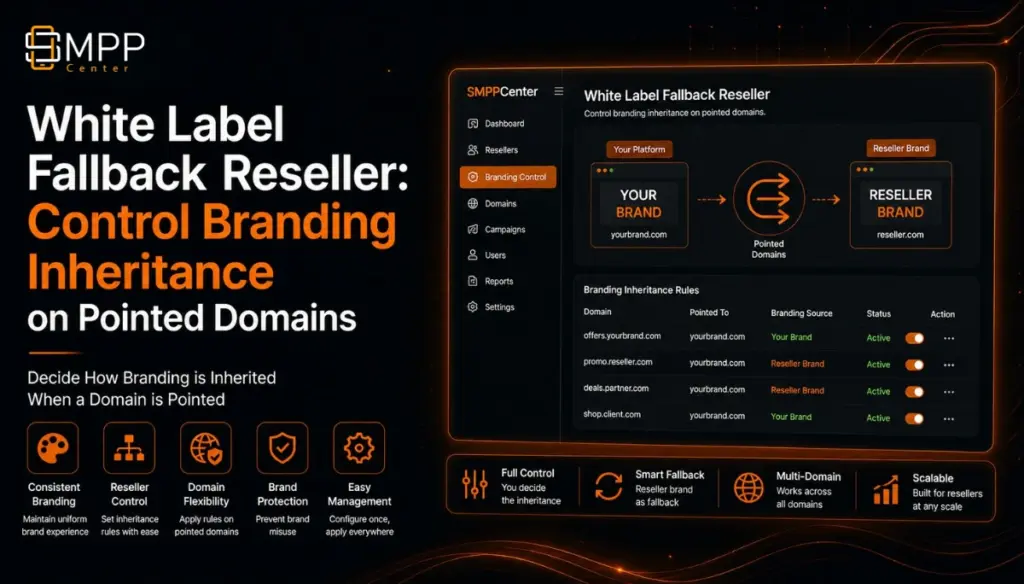
SMPP Center licensed platforms often run many resellers, each with a pointed domain and their own White Label settings. Until now, the hard question was: when a reseller has only partly configured White Label, where should missing pieces come from?
This update adds an admin-controlled answer: White Label Fallback Reseller on Edit User → Reseller tab.
It is stored on that reseller’s profile as their fallback account id. At runtime, on their pointed domain, missing usable White Label sections can be read from the selected fallback reseller. If you leave fallback as None, the platform no longer quietly fills branding or SMTP from the platform owner. That reseller’s domain stays isolated to whatever they configured themselves.
What this feature is (and is not)
It is
- An admin-only setting on the Reseller tab of Edit User.
- A runtime inheritance rule for pointed-domain White Label CMS values.
- Optional. Default is None (no fallback).
It is not
- Automatic parent-tree inheritance (it does not walk the reseller hierarchy).
- A silent fallback to platform user / owner branding when unset.
- Something the reseller configures themselves on the White Label manager (admins set it; resellers still manage their own White Label sections).
How resolution works on a pointed domain
When a visitor or end user hits a reseller’s pointed domain, the platform loads White Label values in this order:
- Domain reseller’s own White Label values (always win when present and usable).
- Only if a White Label Fallback Reseller is set, and White Label is enabled for that domain reseller: missing sections are filled from the fallback reseller’s White Label values.
- If fallback is None: no other user’s CMS rows are applied. Missing site name, logo, footer, SMTP, email templates, pages, and similar fields are not filled from the platform owner.
Usable means the section actually has a real value. Empty values do not count. For SMTP sections, the value must decode to a config with a real SMTP host before it is treated as usable.
So if Reseller A (pointed domain) has logo + site name, but no SMTP, and fallback is Reseller B:
- Logo and site name stay from A.
- SMTP can come from B (if B has a usable SMTP config).
- Anything A already configured is never overwritten by B.
What exactly can inherit from the fallback
Anything the domain reseller has not configured (or configured with an unusable empty value) can inherit from the fallback reseller’s White Label CMS, including typical sections such as:
- Site name / titles
- Image logo, text logo, favicon
- Footer and social links
- Meta header tags
- Public pages (contact, privacy, terms, disclaimer)
- Email settings / branded email templates
- SMTP connectivity used for white-label outbound mail
- Other White Label sections the reseller can normally configure
Public login theme and other branding that resolve through the same CMS merge path follow the same rule: domain first, then fallback only when set.
Email / SMTP note: outbound white-label SMTP resolution is: reseller’s own SMTP first, then the configured fallback reseller only. It does not fall through to the platform owner when fallback is unset.
What happens when fallback is None (strict mode)
This is the important behavior change for operators:
- Pointed-domain branding uses only that reseller’s own White Label rows.
- Missing branding no longer inherits platform site name or other owner defaults on public and user pages.
- Missing SMTP / email branding is not quietly borrowed from the platform.
- The admin panel still keeps normal platform operator branding for staff UI. Strict isolation targets reseller-facing pointed-domain experience, not the admin console.
Use None when each reseller must be fully self-contained and you do not want any shared branding source.
Rules that always apply
- Enable White Label must be On for the domain reseller, or fallback is ignored (treated as no fallback).
- Turning Enable White Label Off also clears the fallback and stops inheritance.
- Fallback cannot be the same user you are editing.
- Fallback must be an active reseller account.
- The admin White Label preview on the Reseller tab shows only that reseller’s configured sections (read-only). It does not simulate the merged runtime view with fallback applied. Runtime merge happens on the pointed domain.
Steps: how admins manage it
A. Set a White Label Fallback Reseller
- Sign in as Admin.
- Open Users → Manage Users.
- Edit the reseller who owns the pointed domain.
- Open the Reseller tab.
- Set Enable White Label to Yes.
- In White Label Fallback Reseller, choose another active reseller, or leave None (no fallback).
- Click Save Changes.
- Confirm the Reseller tab reloads with the saved fallback selection.
- Review the White Label Settings preview below the form: it lists only sections this reseller has configured themselves.
B. Decide what the fallback should provide
On the fallback reseller account:
- Open their White Label manager (or ensure their White Label CMS sections are configured).
- Configure the shared pieces you want child pointed domains to inherit when missing, for example:
- corporate logo pack
- default SMTP
- email template styles
- legal pages
- Leave domain-specific items (unique site name, domain-specific contact page, etc.) on each child reseller so those stay local and win at runtime.
C. Verify on the pointed domain
- Open the reseller’s pointed domain login / public pages.
- Confirm configured local values (logo, site name, etc.) still show from that reseller.
- Confirm a deliberately missing section (for example SMTP or footer) appears from the fallback reseller when fallback is set.
- Set fallback back to None, save, and confirm missing sections no longer pull platform/owner branding.
D. Disable inheritance
- Edit the domain reseller → Reseller tab.
- Either set White Label Fallback Reseller to None, or turn Enable White Label Off (this clears fallback automatically).
- Save Changes.
Practical operating patterns
Pattern 1: Shared brand house + local reseller skins
Master reseller holds logos, SMTP, and email chrome. Each pointed-domain reseller sets only site name, domain, and a few local pages. Set fallback to the master reseller.
Pattern 2: Fully isolated resellers
Every reseller configures their own complete White Label. Leave fallback as None so nothing leaks from platform or peers.
Pattern 3: Temporary bootstrap
New reseller gets fallback to a template reseller while onboarding, then you clear fallback once their own White Label is complete.
Why this matters
Operators get explicit control over branding inheritance instead of accidental platform fill-in. Pointed domains become predictable:
- with fallback: controlled shared defaults
- without fallback: strict reseller-only branding
That is safer for multi-tenant white-label networks and clearer for support teams debugging “whose logo/SMTP is this domain using?”
FAQ
Does the fallback overwrite the reseller’s own settings?
No. The domain reseller’s usable values always win.
If fallback is empty, do we still get platform branding?
No. Missing sections stay missing (or show neutral hostname-based labeling where a site name is required), rather than inheriting platform owner White Label.
Can I pick any user as fallback?
No. It must be another active reseller, not the same account, and not a non-reseller user.
Does turning off White Label keep the fallback for later?
No. Turning Enable White Label off clears fallback and stops inheritance.