
Super Admin can now add custom meta tags and link elements to reseller accounts for SEO optimization, geo-targeting, social media integration, and branding purposes. These tags appear only on the frontend login/public pages of the reseller’s custom domain, helping improve search engine rankings and social media presence.
Key Features
- SEO Optimization: Add meta descriptions, keywords, and SEO-related tags
- Geo-Targeting: Include location-based meta tags for local search optimization
- Social Media Integration: Add Open Graph (Facebook), Twitter Cards, and other social meta tags
- Custom Branding: Include custom favicons, touch icons, and theme colors
- Security: Only
<meta>and<link>tags are allowed with specific attributes - Frontend Only: Tags appear only on public/frontend pages, not in admin or user panels
Who Can Use This Feature?
- Super Admin Only (Admin ID: 1)
- Available only for resellers with custom domains configured
- Found in: Users → Resellers → Edit Reseller → Meta Header Tags section
How to Add Meta Tags
Step 1: Navigate to Reseller Settings
- Log in as Super Admin
- Go to Users → Edit User → Reseller Tab
- Click Edit on the reseller who has a custom domain
- Scroll down to the Meta Header Tags section
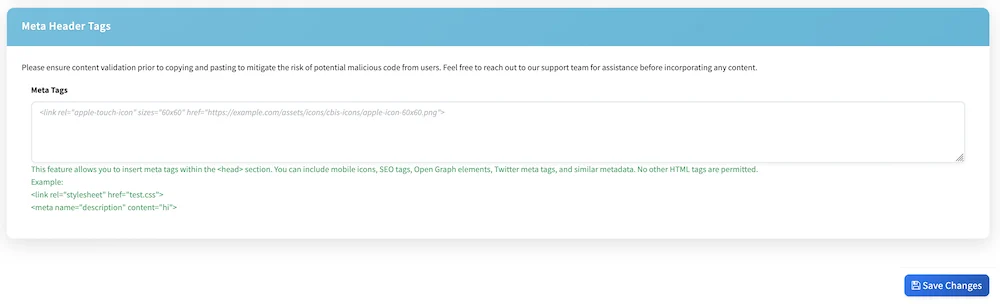
Step 2: Add Your Meta Tags
In the Meta Tags textarea, paste your desired meta and link tags. For example:
<link rel="icon" type="image/png" href="https://yourdomain.com/favicon-32x32.png" sizes="32x32">
<link rel="apple-touch-icon" sizes="180x180" href="https://yourdomain.com/apple-touch-icon.png">
<meta name="description" content="Your business description for SEO">
<meta name="keywords" content="bulk sms, whatsapp api, messaging">
<meta name="author" content="Your Company Name">
<meta name="theme-color" content="#ffffff">
<meta property="og:title" content="Your Business Name">
<meta property="og:description" content="Your service description">
<meta property="og:image" content="https://yourdomain.com/social-image.jpg">
<meta property="og:url" content="https://yourdomain.com">
<meta name="twitter:card" content="summary_large_image">
<meta name="twitter:title" content="Your Business Name">
<meta name="geo.position" content="19.078545;72.878176">
<meta name="geo.region" content="IN-MH">
<meta name="geo.placename" content="Mumbai">
Step 3: Save Changes
Click the Update button to save the meta tags.
Allowed Tags and Attributes
For security reasons, only specific tags and attributes are permitted:
Allowed Tags:
<link> - For stylesheets, icons, and external resources
<meta> - For SEO, social media, and metadata
Allowed Attributes:
For <link> tag:
rel - Relationship (icon, stylesheet, canonical, etc.)
href - URL/path to resource
sizes - Icon sizes
type - MIME type
crossorigin - CORS settings
content - Content value
property - Property name
name - Name attribute
itemprop - Schema.org microdata
profile - Profile reference
For <meta> tag:
name - Meta name (description, keywords, author, etc.)
content - Meta content/value
property - Open Graph/Facebook properties
itemprop - Schema.org microdata
http-equiv - HTTP headers
charset - Character encoding
Common Use Cases
1. SEO Optimization
<meta name="description" content="Leading bulk SMS and WhatsApp messaging provider in India">
<meta name="keywords" content="bulk sms, whatsapp business api, otp sms">
<meta name="robots" content="index,follow">
<link rel="canonical" href="https://yourdomain.com">
2. Geo-Targeting
<meta name="geo.region" content="IN-MH">
<meta name="geo.placename" content="Mumbai">
<meta name="geo.position" content="19.078545;72.878176">
<meta name="ICBM" content="19.078545, 72.878176">
3. Social Media Integration
<meta property="og:title" content="Your Business Name">
<meta property="og:description" content="Your service description">
<meta property="og:image" content="https://yourdomain.com/image.jpg">
<meta property="og:url" content="https://yourdomain.com">
<meta property="og:type" content="website">
<meta property="fb:app_id" content="your-app-id">
<meta name="twitter:card" content="summary_large_image">
<meta name="twitter:site" content="@yourtwitterhandle">
4. Mobile & Branding
<link rel="icon" type="image/png" href="https://yourdomain.com/favicon.png">
<link rel="apple-touch-icon" sizes="180x180" href="https://yourdomain.com/apple-icon.png">
<meta name="theme-color" content="#2196F3">
<meta name="apple-mobile-web-app-capable" content="yes">
<meta name="mobile-web-app-capable" content="yes">
Where Do These Tags Appear?
✅ Visible On:
- Reseller’s custom domain frontend pages
- Public login pages
- User registration pages
- Forgot password pages
- Contact forms
- Any public-facing pages
❌ Not Visible On:
- Admin panel pages
- User dashboard/panel pages
- Internal application pages
Deleting Meta Tags
To remove meta tags for a reseller:
- Go to Users → Resellers → Edit Reseller
- Locate the Meta Header Tags section
- Click the Delete Meta Header button (red button at top-right)
- Confirm the deletion
Security & Validation
Important Security Notes:
- All input is automatically sanitized
- Only allowed tags (<link>, <meta>) are permitted
- Only specified attributes are allowed
- Any JavaScript, inline events, or malicious code is automatically stripped
- Validation occurs before saving
⚠️ Important: Always validate your meta tags before adding them. If you’re unsure about any tags, contact our support team for assistance.
Best Practices
- Use Valid URLs: Ensure all href attributes contain valid, accessible URLs
- Optimize Images: Use optimized images for Open Graph and Twitter cards (recommended size: 1200x630px)
- Keep It Relevant: Only add tags that are necessary for your SEO and branding goals
- Test After Adding: Visit your custom domain’s frontend to verify tags appear correctly (use browser’s “View Source”)
- Regular Updates: Keep meta descriptions and content fresh and relevant
- Mobile Icons: Include various sizes for better mobile experience (16×16, 32×32, 180×180, etc.)
Troubleshooting
Q: I added tags but they don’t appear on my pages
- Ensure the reseller has a valid custom domain configured
- Clear your browser cache and hard refresh (Ctrl+F5)
- Check that you’re viewing the frontend/public pages, not admin or user panel
- Verify tags were saved successfully (edit reseller and check if content is still there)
Q: Some of my tags were removed after saving
- Only <link>, and <meta> tags are allowed
- Check if removed tags had disallowed attributes
- Review the allowed attributes list above
Q: Can I add custom CSS or JavaScript?
- No, for security reasons only meta and link tags are permitted
- You cannot add <style> or <script> tags
- Consider using external stylesheets via
<link>tags instead
Q: Do these tags affect SEO for the main platform?
- No, these tags only appear on the reseller’s custom domain
- Each reseller’s SEO is independent
- Main platform SEO is not affected
Need Help?
If you need assistance with:
- Choosing appropriate meta tags
- Validating your content
- SEO optimization strategies
- Troubleshooting tag display
Please contact our support team or create a support ticket from your admin panel.
Version: 7.6+
Feature Level: Super Admin Only
This feature empowers resellers with professional SEO capabilities while maintaining platform security and integrity. Use it wisely to enhance your resellers’ online presence!