Every SMS gateway owner knows the hardest part of winning a new enterprise customer is not pricing. It is integration.
Your prospect already has PHP scripts, ERP connectors, CRM workflows, or middleware talking to another vendor’s HTTP API. Those systems use fixed parameter names like to, text, username, or send_to. In many cases, the customer cannot change the request body at all. They can only point traffic to a new base URL.
That is exactly why we built API Signatures in SMPP Center.
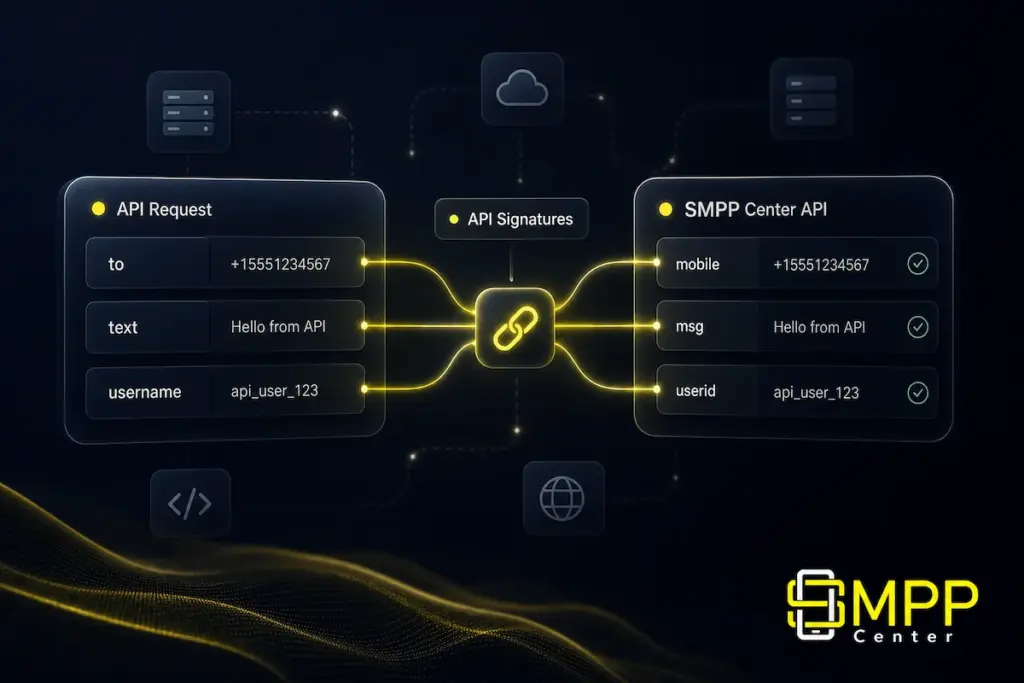
As a license holder, you configure this from your own platform admin panel (not from smppcenter.com). Your customers keep sending the same parameters they always have. Your platform translates those requests into the standard SMPPCenter send format behind the scenes.
What is an API Signature?
An API Signature is a configurable translation layer between your customer’s HTTP API request and your SMPPCenter SMS engine.
You define:
- A display name (for your operations team)
- A URL key (the path segment in the endpoint)
- A customer account (one user, or all users on your platform)
- A parameter map (customer field names → system fields like login, password, mobile, message, sender ID, DLT fields)
After setup, the customer calls a dedicated endpoint on your licensed domain, for example:
https://your-domain.com/SMSApi/signature/flash49They send username, password, to, text, and from. Your platform receives it, maps it internally, and processes the SMS like any normal send request.
Supported methods: GET and POST (query string or application/x-www-form-urlencoded form body).
Where license holders manage this
If you run a licensed SMPPCenter installation, open your admin panel and go to:
Settings → API Signatures
From there you can:
| Action | What it does |
|---|---|
| List / Read | View all signatures, URL keys, customer scope, status, and full endpoint URLs |
| Create | Add a new signature using the two-step wizard |
| Update | Edit mappings without asking the customer to change their integration (if the URL key stays the same) |
| Delete | Remove a signature permanently |
| Enable / Disable | Pause traffic without losing configuration |
| Refresh cache | Push changes live to the SMS API server immediately |
Access is controlled through admin roles under the Settings category, feature API Signatures (Create, Read, Update, Delete). Assign permissions only to trusted operations or technical admins on your team.
Full in-panel documentation is also available under Admin → Documentation → Settings → API Signatures on your licensed installation.
Why this feature matters for your business
1. Faster customer onboarding
When a prospect says “We can only change the hostname, not our code”, you no longer lose the deal. You absorb their API shape on your side and go live in hours instead of weeks.
2. Lower integration cost for you and your customer
No custom PHP patches per customer. No asking their developer to rewrite Postman collections, Java services, or billing system connectors. You configure mappings in the admin UI once and share one URL.
3. White-label and reseller advantage
Resellers can offer an API that looks and behaves like the customer’s previous provider while routing through your SMPPCenter cluster. That makes competitive takeaways smoother and reduces switching friction.
4. Multiple formats on one platform
Customer A sends to / text. Customer B sends send_to / msg_type. Customer C still uses Flash49-style DLT field names. Each gets their own signature URL and mapping. One platform, many compatibility layers.
5. Safe rollout and maintenance
- Create a signature disabled, test it, then enable for production.
- Toggle off during maintenance without deleting configuration.
- Use Refresh cache after changes so the SMS API server picks them up immediately.
Real-world scenarios license holders solve
Scenario A: Customer wants custom parameter names
A customer sends:
username, password, to, text, frominstead of the default:
userid, password, mobile, msg, senderidSolution: Create a signature, map each customer parameter to the matching system field, share the signature endpoint URL. Done.
Scenario B: Locked to another vendor’s API format
Large enterprises often have CRM, ERP, or middleware where the HTTP body format is fixed. Middleware teams refuse to change parameter names. If they can only update the base URL, API Signatures is the right tool.
You become compatible without touching their codebase.
Scenario C: Migrating from Flash49, GS Send, or similar gateways
Built-in starter templates help you move faster:
| Template | Best for | Example customer parameters |
|---|---|---|
| Standard SMS | Close to default SMPPCenter names | userid, password, mobile, msg, senderid |
| Flash49 | Flash49-style gateways | username, to, text, from, unicode, DLT fields |
| GS Send | GS Send compatible APIs | userid, send_to, msg_type, optional method=SendMessage |
| Blank | Fully custom vendor | Map every field manually |
Pick the closest template, adjust what differs on your platform, test, and share the URL.
Scenario D: One shared format for all accounts
Set Customer account to All users when the same external API format should work for any valid login. Useful for a public compatibility endpoint or a legacy product URL you want to keep alive.
How the wizard works (Create / Update)
Step 1 — Basic
- Display name: Internal label (e.g. Acme Corp Legacy API)
- URL key: Unique slug in the endpoint path (lowercase letters, numbers, underscore)
- Customer account: One user, or All users (global)
- Active: On by default; disable for testing
- Start from template: Blank, Standard SMS, Flash49, or GS Send
Step 2 — Parameters
Map system fields to customer parameter names. Required mappings:
- Login / Username
- Password
- Mobile number
- Message text
Optional but commonly mapped:
- Sender ID
- Message type (text, unicode, flash)
- DLT Entity ID / Template ID (India compliance)
- Campaign / reference
- Response format (plain, json, xml)
Transforms handle value differences, for example:
- Customer sends
unicode=trueinstead ofmsgType=unicode - GS-style
text/unicode_textmessage types - Response format normalization (
format=text→ plain) - Lowercase normalization when needed
Per-field options include Decode HTML entities and Use default sender when the customer omits sender ID. Show advanced fields exposes schedule time, contact group, telemarketer ID, and similar.
The Live URL preview builds a sample query string with placeholders so you can verify mapping before save (no real credentials exposed).
Recommended workflow for your operations team
- Collect a sample request from the customer (full URL, method, query/body parameters).
- Identify which parameters carry login, password, mobile, message, sender, and DLT data.
- Create a signature in your admin — pick the closest template, then adjust mappings.
- Test with the live URL preview and a sandbox or test user account.
- Share the endpoint URL with the customer. On their side, usually only the host/path changes.
- Save, confirm cache refresh succeeded, and monitor message logs for the test user.
- Enable for production when satisfied.
Operational benefits you get as a license holder
- No per-customer code deploys — configuration lives in your admin UI and database.
- Audit-friendly — each signature has a name, scope, and stored configuration.
- Role-based security — CRUD controlled through admin roles.
- Multiple signatures per cluster — different URL keys for different segments or legacy products.
- DLT-ready — map entity ID, template ID, and telemarketer fields when the customer’s vendor uses different names.
- Instant cache refresh — click Refresh cache on the list page after bulk changes; if refresh fails, changes propagate within about 15 minutes or after ApiServer restart.
A note on changing live signatures
If you edit mappings but keep the same URL key, the customer does not need to change anything.
If you change the URL key after go-live, the endpoint path changes. Communicate the new URL to the customer before cutover.
Use Enable / Disable for soft pauses. Use Delete only when you are sure the integration path is retired.
Who should use API Signatures?
API Signatures is built for SMPP Center license holders who:
- Operate their own branded SMS platform admin
- Onboard enterprise customers with existing HTTP integrations
- Compete against gateways where customers are “locked in” to a parameter format
- Want reseller-friendly, white-label API compatibility
- Need DLT field mapping without rewriting customer systems
It complements — not replaces — your standard SMPPCenter HTTP API and SMPP connections. Use the default API for new integrations; use API Signatures when compatibility is the sales blocker.
Get started on your licensed platform
- Log in to your SMPPCenter admin panel (your domain, your installation).
- Go to Settings → API Signatures.
- Click Add, choose a template, map parameters, and test.
- Share the signature URL with your customer.
- Click Refresh cache and monitor your message logs.
For step-by-step reference, open Admin → Documentation → Settings → API Signatures on your licensed installation.
About SMPP Center: We build enterprise-grade A2P SMS software for license holders, resellers, and operators who need robust, scalable messaging platforms. Explore more on the SMPP Center Journal.